Ticket & Workflow
Ticket
A ticket represents a specific task or item that needs to be processed. When users create a new ticket, it follows the workflow design to transition between different nodes and different handlers.
Workflow
A workflow defines the approval chain for tickets, including:
The handlers for each node
Available operations at each node (submit, save, complete, reject, close, etc.)
Which fields are displayed at each node
Which fields can be edited at which nodes
Sub-ticket
Sub-tickets are primarily used when ticket flow involves hierarchical relationships. For example, in a project development cycle, there may be two levels: project cycle and application cycle. When a project is in development, multiple related applications may be at different stages (code writing, static scanning, unit testing, development completion, etc.). When all application nodes complete development, the project node transitions to testing. In this scenario, application tickets are sub-tickets of the project ticket, and the parent node of application tickets is the project’s “In Development” node.
Sub-workflow
The parent-child hierarchy of workflows is not reflected in workflow records, but rather in node records. When configuring a workflow, you can set a sub-workflow for a specific node of a workflow. Different nodes within the same workflow can have different sub-workflows.
Flowchart
To help users understand workflow transition rules, flowcharts can be used to visualize the workflow.
Accept
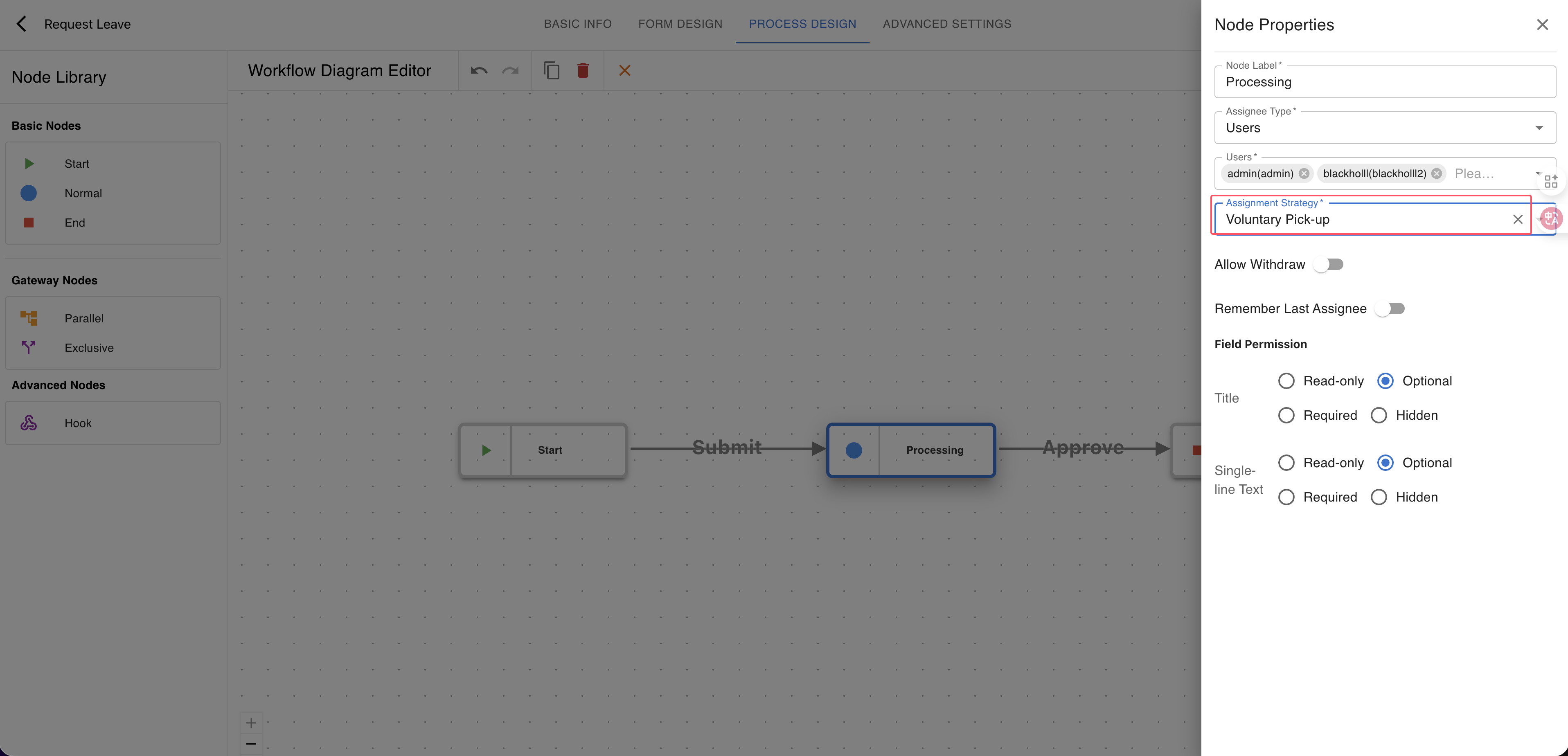
When a ticket reaches a node where there are multiple actual handlers and the assignment method is “Voluntary Pick-up”, users must first “accept” the ticket before processing it. This prevents multiple people from processing the same ticket simultaneously. The handler can only formally process the ticket after successfully accept it.
Forward
Normally, tickets flow according to the rules set by their corresponding workflow (nodes, handler types, handlers, etc.). In practice, for example, User A submits a ticket that reaches the “Operations Processing” node. User B picks up and processes it, but during processing, User B realizes they cannot handle it and needs User C to process it instead. User B then forwards the ticket to User C.
Force Forward
Administrators or workflow administrators can directly force forward a ticket to another handler. After forward, the ticket remains at the same node, but the handler changes to the specified person.
Force Close
Administrators or workflow administrators can directly force close a ticket. After force close, the ticket node changes to “end”(the node’s type is “end”).
Withdraw
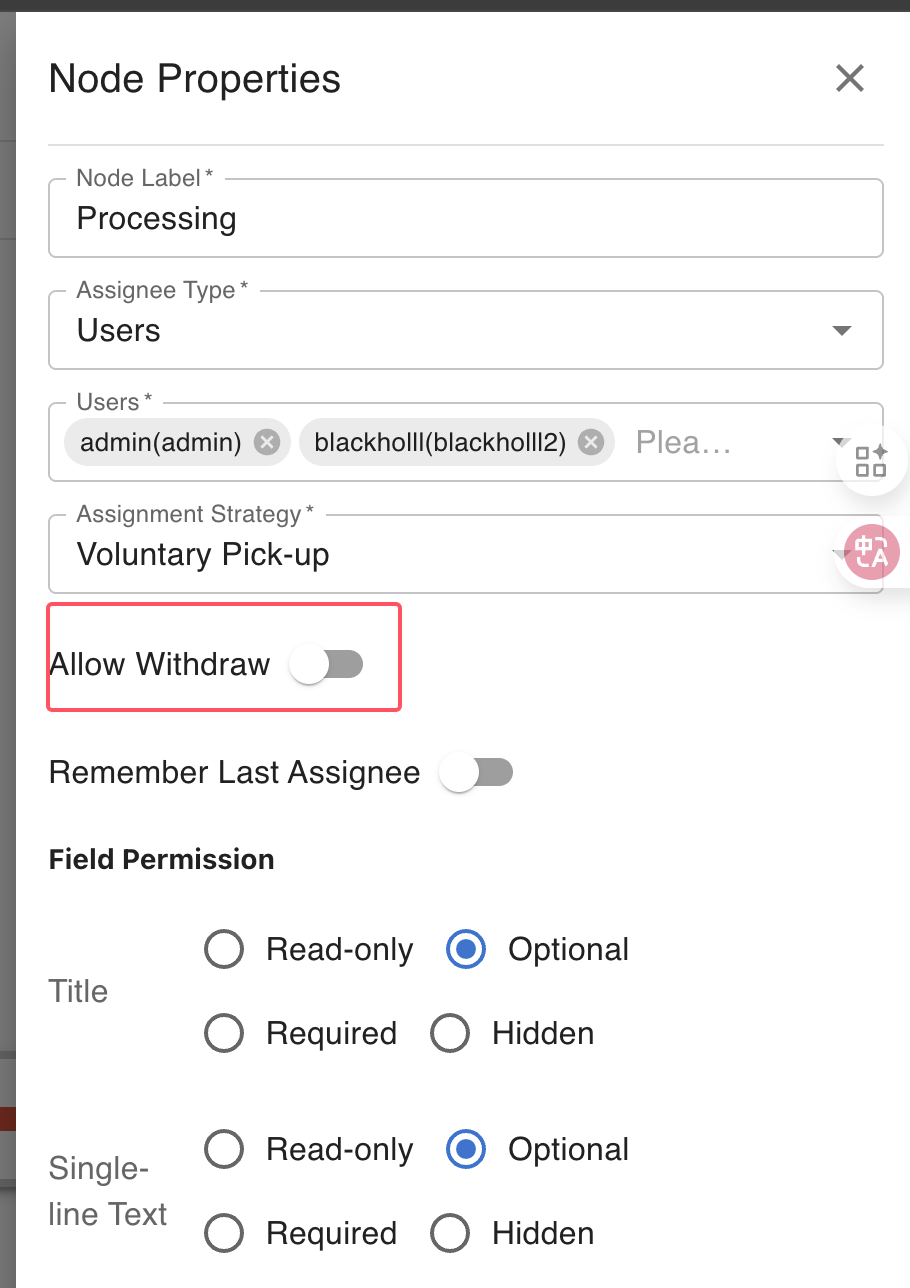
When a ticket’s current node has withdrawal enabled, the ticket submitter can withdraw the ticket. After withdrawal, the ticket returns to the initial node of the corresponding workflow. Only nodes configured to allow withdrawal can be withdrawn, to avoid scenarios where a ticket is being processed and cannot be rolled back. If a ticket is at a node that does not allow withdrawal and the initiator needs to withdraw it, they can contact the current handler and administrator for intervention.
Consult
Consult differs from transfer. Normally, tickets flow according to the rules set by their corresponding workflow (nodes, handler types, handlers, etc.). In practice, for example, User A submits a ticket that reaches the “Operations Processing” node. User B picks up and processes it, but during processing, User B discovers that User C needs to perform some operations or provide information before User B can proceed. User B then consults the ticket to User C. After User C completes processing, the ticket handler returns to User B, allowing User B to continue processing.
Consult Submit
When User A consults a ticket to User B, User B can only perform the “consult_submit” operation on the ticket detail page, and can also fill in processing comments. After consult_submit, the ticket handler becomes User A again, allowing User A to continue processing the ticket based on User B’s comments.
Notes
Difference between Ticket Custom Fields and Workflow Custom Fields:
Workflow custom fields define which custom fields a workflow has. For example, when configuring a leave request workflow, you need a “Leave Days” field.
Ticket custom fields store the specific values of custom fields. For example, when a user creates a new leave ticket and fills in the leave days, this value is saved in the ticket’s custom fields table.
Workflow Processing Process:
The workflow processing process can be understood as changes in the ticket’s node. A workflow can be in one or more of the following nodes during processing: “Initiator Creating”, “Initiator Editing”, “Department Manager Reviewing”, “Technical Staff Processing”, “Initiator Verifying”, “Completed”. Each node corresponds to specific handlers (e.g., only the department manager can handle tickets in the “Department Manager Reviewing” node).
For example, when a user creates a new ticket, it is in the “Initiator Creating” node. After submission, the ticket moves to “Department Manager Reviewing”. After the department manager (the handler for the “Department Manager Reviewing” node) approves, the ticket node changes to “Technical Staff Processing”.
Important: “Transfer” and “Consult” have different use cases. The frontend should provide necessary explanations when using these features to avoid user errors.